Reseller guides / Eagle4KPanel.com
Eagle 4K HDR Looks Dark or Washed Out? Colour Checks
Published 25 October 2026 · Eagle4KPanel.com · Reseller troubleshooting guide
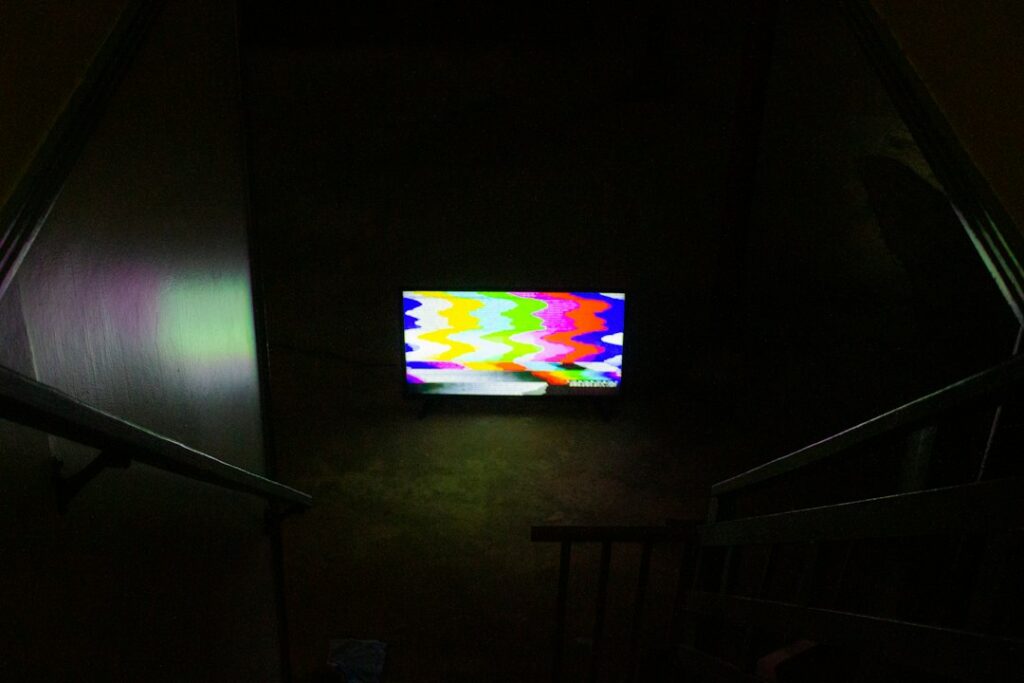
Illustrative photo by Reagan Freeman on Unsplash, used under the Unsplash licence; not a screenshot of the service.
If Eagle 4K video becomes unusually dark, grey, pale or washed out only when an HDR-labelled stream starts, test the entire display chain before changing brightness. The source signal, player, device dynamic-range mode, HDMI port and television picture mode must agree. A “4K” name does not prove that the stream is HDR, correctly signalled or compatible with the customer’s display.
This guide does not claim that every Eagle 4K item is HDR, that any current channel uses HLG, HDR10 or Dolby Vision, or that a particular television reproduces those formats accurately. Eagle IPTV and Eagle 4K are separate reseller offers.
What the public discussions can—and cannot—tell us
A TiviMate thread displayed as two years old on 25 October 2026 described a 4K feed that looked darker through Chromecast than through a TV app. Replies discussed HDMI enhanced/deep-colour settings, always-on HDR and differences between televisions. One later reply reported an improvement after changing an HDMI setting, while other users still had app-specific dimming. This is anecdotal and not Eagle-specific.
Another thread displayed as two years old on 25 October 2026 described dimming across different providers and suspected HLG compatibility. Replies mixed guesses with personal results. Use the discussion to identify variables, not as proof of a universal fix.
Historical Eagle reviews from 2025 discussed 4K labels and mixed perceived quality, but those reports cannot verify today’s streams or HDR signalling. This article therefore focuses on a reproducible device checklist rather than current channel claims.
Separate resolution from dynamic range
| Term | What it describes | What it does not establish |
|---|---|---|
| 4K / UHD | Pixel dimensions or a marketing label | HDR format, bit depth or source authenticity |
| SDR | Standard dynamic range presentation | Low quality or low resolution |
| HDR10 | An HDR format using static metadata | Dolby Vision or HLG compatibility |
| HLG | A broadcast-oriented HDR format | Support on every box, player or television |
| Dolby Vision | A separate dynamic-HDR ecosystem | Availability merely because a title says 4K |
| Picture mode | TV processing preset for an input or signal | The source format itself |
Android’s official media-format documentation lists platform decoder support while noting version and format details. Device manufacturers and applications still determine the implemented playback path. Check the exact model manual rather than treating “Android TV” or “4K box” as one specification.
Use a controlled HDR diagnostic
- Choose one repeatable example. Record the exact channel or VOD title, date, time zone, player, device and HDMI input.
- Compare an SDR or FHD version. If the same programme is available through an authorised non-HDR version, compare without changing any other setting.
- Watch the television’s signal indicator. Record whether the TV shows HDR, HLG or Dolby Vision when playback begins. Do not assume from the channel name.
- Check the player’s information panel. Note resolution, codec and colour information if shown, while recognising that labels can be incomplete.
- Compare built-in and external paths. When authorised and available, compare the TV’s verified native player with one external device to isolate HDMI and device settings.
- Use match-content or adaptive output as documented. Avoid forcing HDR for every menu and SDR item unless the device manufacturer recommends it.
- Check the exact HDMI input. Enhanced, deep-colour or Input Signal Plus settings are often configured per port.
- Change one variable. Keep a baseline photo or written note, change one setting, retest the same item, then restore before the next test.
- Escalate with evidence. Provide the exact stream, TV model, device, player and observed HDR indicator without exposing credentials.
Check the external-device path
Amazon’s official Fire TV HDR troubleshooting recommends the Audio and Video Diagnostics tool. Its 4K output guidance explains where to select a supported resolution and notes that unavailable modes may not be detected by the connected display path. These steps verify Fire TV and display capability; they do not verify an Eagle source.
For Samsung televisions, the manufacturer’s HDR guidance says to enable Input Signal Plus for the HDMI port connected to the HDR-capable device. The menu name and availability vary by model, so use the television’s own manual.
If a native TV app looks correct but an HDMI device looks grey or dim, focus first on the external device’s dynamic-range mode, that HDMI input’s enhanced setting, cable path and TV picture mode for that input. If every legitimate HDR app on the same path looks wrong, the issue is broader than Eagle.
Read the symptoms carefully
| Observation | Start with | Do not conclude yet |
|---|---|---|
| Only HDR-labelled items are dark | Dynamic-range compatibility and tone mapping | That the stream is fake or the panel is down |
| All content is washed out, including menus | Forced HDR/Dolby Vision or TV input mode | That every source is colour-incorrect |
| Built-in app is normal; HDMI box is wrong | Device output and HDMI input settings | That the TV panel is defective |
| Another app is also wrong on the same box | Device-to-TV display chain | That the Eagle account caused it |
| One channel is wrong; others are normal | Item-specific signalling or source issue | That changing global brightness is safe |
| Picture disappears but audio continues | Format/decoder/HDMI compatibility | That a playlist refresh will repair colour |
Avoid “fixes” that hide the evidence
- Do not increase brightness or contrast globally before confirming whether the television entered HDR mode.
- Do not force Dolby Vision or HDR permanently just because the device offers the option.
- Do not install a modified player, unknown codec pack or unofficial firmware.
- Do not call a stream “native 4K HDR” from its name, logo or resolution alone.
- Do not copy calibration values from another TV model, panel size or room.
- Do not change the customer’s HDMI port, picture mode, player and source simultaneously.
- Do not share screenshots containing server URLs, usernames or customer information.
For a general resolution and motion evaluation, use the picture-quality guide. If the image is cropped or stretched rather than dark, use the aspect-ratio checklist. Device selection is covered in the Smart TV versus streaming-device guide.
Germany, Europe and USA reseller notes
Record the customer’s actual television model and market region. Menu names, firmware, supported HDR formats and app versions can differ across regional variants. A US model guide may not exactly match a German or EU model with a similar retail name. Use the model-specific manufacturer support page and current firmware notes.
For sports, observe grass, jerseys, white graphics and shadow detail during the same scene. Describe what changed—“whites became grey when the HDR badge appeared”—instead of using only “bad quality.” That evidence helps separate colour handling from resolution, compression or motion problems.
Frequently asked questions
Does Eagle 4K mean every stream is HDR?
No conclusion like that can be drawn from the offer name. Confirm the exact item and signal using the player and television information, and ask support for current offer-specific details.
Why does the picture look fine in the TV app but dark on Fire TV or Chromecast?
The external path adds a device output mode, HDMI port configuration, cable and input-specific picture settings. Compare those layers before blaming the stream.
Should I force HDR all the time?
Not as a universal rule. Follow the device manufacturer’s match-content or dynamic-range guidance. Forced HDR can make SDR menus or videos look incorrect on some setups.
Can brightness calibration repair an incompatible HDR format?
No. Calibration cannot add format support or correct broken signalling. First verify compatibility and output mode; then calibrate using the television manufacturer’s guidance if needed.
Confirm the display requirement before choosing the offer
Eagle4KPanel.com sells reseller panels, not retail subscriptions. Review the current Eagle IPTV and Eagle 4K credit packages without converting credits into subscription periods. For a specific TV, HDR or offer question, contact WhatsApp +44 7400 751626.
Research note: Checked 25 October 2026. The Reddit threads are dated, non-Eagle anecdotes used only to identify troubleshooting variables. Amazon, Samsung and Android sources support their own device and format guidance. No current Eagle HDR channel, first-hand test or compatibility guarantee is claimed.