
Reseller guides / Eagle4KPanel.com
Eagle 4K EPG Not Working? A Practical Player and TV Guide Checklist
Published 17 October 2026 · Eagle4KPanel.com · Reseller guide
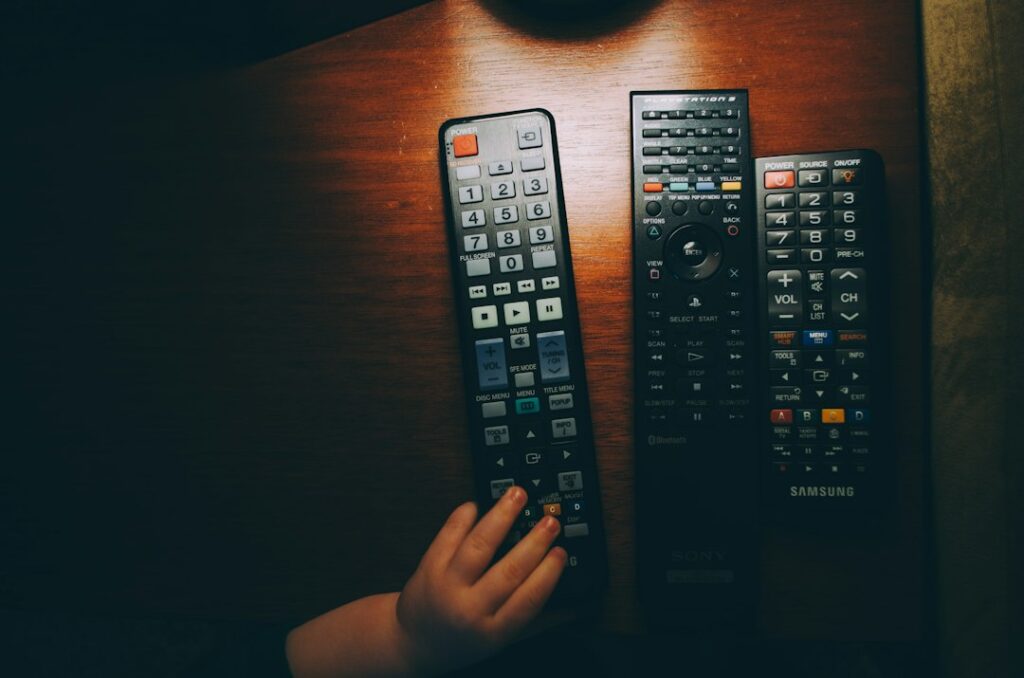
Illustrative photo by Kelly Sikkema on Unsplash; not a screenshot of the service.
If your Eagle 4K EPG is blank, first check whether the channel itself plays. The electronic programme guide contains schedule information; the player also needs access to the video stream. A missing guide entry does not automatically mean the channel is offline, and a working guide does not prove playback is working.
This guide helps you describe the symptom, check the relevant settings and prepare a useful support request. It also addresses a recurring question in Eagle IPTV discussions: which app should you use? The steps are general diagnostic checks, not a guaranteed fix for every account or player version. Use the setup details supplied for your order.
What Eagle users discuss on Reddit
In the Eagle4K megathread started on 15 December 2024, users discussed missing programme information and whether an external guide or playlist editor would help. A separate 17 December 2024 trial discussion reported guide problems alongside playback complaints. These are different symptoms, so it is more useful to investigate them separately than to apply one supposed fix to everything.
App selection remains another question: a post dated 13 August 2026 asked for an app specifically for Eagle. That question does not establish that a particular download is official. Ask your supplier which player and login method are appropriate for your device and account.
Identify the symptom before changing anything
| What you see | First question to answer |
|---|---|
| Channels play; the entire guide is blank | Is the correct guide source assigned, and did its last update succeed? |
| Only a few channels have no information | Does the guide source cover those exact channels and regional versions? |
| Programme names appear at the wrong time | Are the device time zone and any player guide offset correct? |
| The guide displays; video will not play | Is the issue with account access, the stream, the device or the connection? |
| Everything stopped after an address change | Did support confirm all required access and guide settings for this account? |
Step 1: confirm the player and account you are using
Record your device model, operating system, app name and app version. A reseller dashboard login, a customer account login and a paid player licence are separate items. Check which one the setup screen is asking for. Repeatedly entering dashboard credentials into a viewing app will not clarify a guide problem.
If you use TiviMate, its official website explains that it is a media player rather than a content provider. Its premium purchase unlocks application features and does not supply channels. It is designed for Android TV devices and is not optimised for phones or tablets. This describes the app, not a guarantee that a particular Eagle account is compatible.
Step 2: check the guide source and update result
Open the guide or EPG settings available in your player and compare the configured source with the instructions for your account. Depending on the setup, the guide may be associated with the account automatically or supplied separately. Do not invent an EPG URL or assume that a URL found for another seller belongs to your order.
Look for the last successful update time or an error message. If the player provides a manual refresh, run it once and allow it to complete. Record the result. A successful download with missing entries suggests a different investigation from a failed download. Repeated refreshes cannot fill schedules that the source does not contain.
Step 3: distinguish missing coverage from a channel match problem
Guide data needs a way to associate a programme with a channel. The XMLTV format specification, for example, links programme records to channel identifiers and stores programme times. This helps explain why two similarly named channels can need different guide assignments.
If one channel is blank, compare its exact regional version with the available guide entry. A national channel, a local affiliate and a time-shifted version should not be treated as interchangeable. If your player supports manual assignment, use a confirmed matching entry and check both the current programme and the next one. Do not bulk-remap the whole list to fix a single channel.
If no matching schedule exists, ask support whether coverage is available for that channel. An external EPG may be an option, but it needs suitable coverage, compatible identifiers and acceptable terms of use. Check its cost and data requirements before adding it to a reseller workflow.
Step 4: investigate wrong programme times carefully
Start with the device date, clock and time zone. Then check whether the player has a guide time offset already applied. Write down the original value before changing it. Choose a programme whose scheduled time you can independently confirm, and compare more than one channel.
If every channel is displaced by the same amount, investigate a shared clock or offset setting. If just one regional feed is wrong, investigate that channel’s schedule or assignment first. Treat these as diagnostic clues, not proof of the cause. Applying a global offset to compensate for one mismatched channel can make the rest of the guide incorrect.
Step 5: isolate a playlist editor from the original setup
If your workflow includes an editor, identify whether the player is receiving the original supplier configuration or the editor’s output. With support approval and within your account’s connection limit, compare them one at a time. Preserve your working settings before testing. For disappearing channel categories or a cleaner favourites list, follow the playlist organisation and missing-groups guide.
A 28 April 2025 discussion about Eagle and IPTV Editor described problems involving an editor and custom DNS. It is a historical user report, not evidence that your current editor has the same fault. The useful lesson is to identify which part of the setup fails before changing the whole account.
Step 6: handle playback failures as a separate case
If the guide appears but the video fails, record whether one channel, one category or the whole account is affected. Check whether the issue appears on one device or multiple devices, testing sequentially within the allowed connection limit. Note any exact error text and whether an authorised known-working channel behaves differently.
Do not treat a VPN, a different DNS setting or a replacement server URL as a universal repair. Ask support which network conditions the account supports. For picture-quality and buffering observations during an evaluation, use the Eagle 4K channel and quality checklist.
A support report that saves repeated questions
- Panel offer and order reference, shared privately with the appropriate support contact.
- Device, operating system, player name and player version.
- Exact channel names, affected regional versions and whether playback works.
- Time and time zone, guide update result and the exact error text.
- Whether an editor or a separate EPG source is involved.
- One change already tested and its result, with credentials hidden in any screenshot.
For example: “Eagle 4K, order [reference], [device/app/version]. Video plays on [channel], but the guide is blank. Last guide update: [time/result]. Other channels [do/do not] show listings. I use [original setup/editor output]. A single refresh produced [result].” This gives support a reproducible starting point.
If you use a third-party guide service, follow the Eagle 4K external EPG editor workflow to map exact channels, verify time zones and keep a rollback path.
Frequently asked questions
Will buying a premium player fix missing EPG data?
Not necessarily. A player licence changes the features available in the app; it does not establish that the guide source contains the missing programmes. Confirm source coverage and configuration first.
Does a blank guide mean my Eagle 4K account has expired?
A blank guide alone is not enough to determine account status. Check playback and ask the supplier to confirm the account status if needed.
Is there one official Eagle app download code?
This research did not verify one universal code for every Eagle offer and device. Use the app developer’s distribution channel and the setup instructions confirmed for your order.
Prepare your reseller setup before ordering
For a reseller, repeatable setup instructions are part of the customer experience. Confirm player compatibility, guide expectations and the support process before choosing a package. See our panel login and support guide, compare reseller panel packages, or ask us about your requirements.
Sources and scope: Reddit discussions are linked beside the historical observations; the app and XMLTV documentation support the technical distinctions. Reviewed 17 October 2026. This article is a troubleshooting workflow, not a current uptime test or a promise of complete EPG coverage.